You can now identify your Electric Vehicles (EV) on the Exchange, making it easier for load
posters to find and choose you when they’re looking for sustainable transport options. A
green leaf icon will appear next to your vehicle wherever it’s visible to buyers.
EV status is self-declared. You simply check a box on your vehicle record — no verification
is required.
posters to find and choose you when they’re looking for sustainable transport options. A
green leaf icon will appear next to your vehicle wherever it’s visible to buyers.
EV status is self-declared. You simply check a box on your vehicle record — no verification
is required.
For fleet owners — labelling an existing vehicle
• Open the Drivers & Vehicles tab from the main navigation.
• Click Company Vehicles from the left-hand panel.
• Find the vehicle in your fleet list and click the pencil (edit) icon.
• Scroll down to the Vehicle Extras section, below the VIN field.
• Check the Electric Vehicle checkbox.
• Click Save.
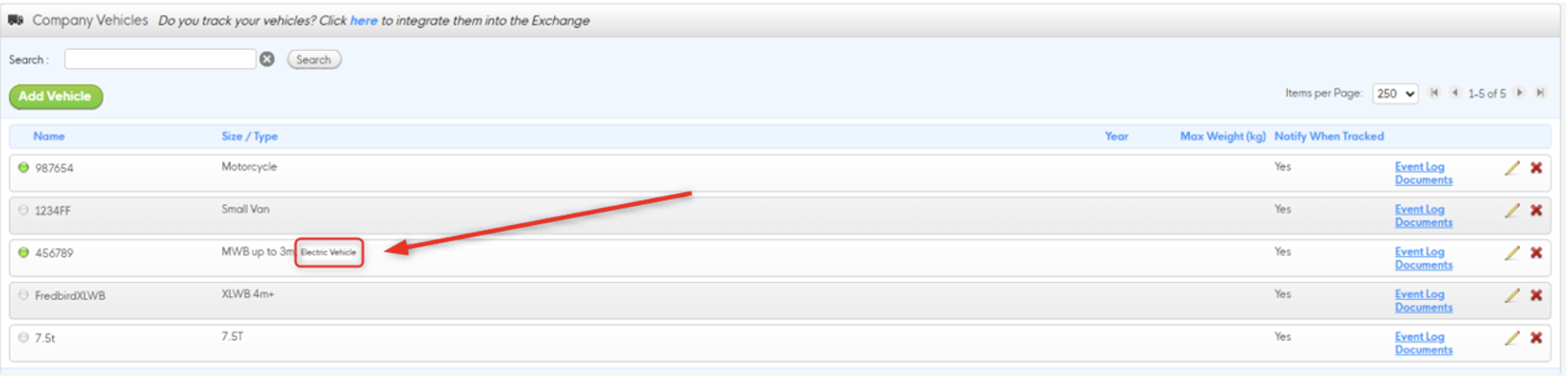
Once saved, the vehicle will display an “Electric Vehicle” label in the Size/Type column of
your Company Vehicles list, and the leaf icon will appear wherever that vehicle is visible to
load posters.
For fleet owners — adding a new vehicle
• Open the Drivers & Vehicles tab.
• Click Company Vehicles, then Add Vehicle.
• Complete the vehicle details form.
• In the Vehicle Extras section, check the Electric Vehicle checkbox if the vehicle is
electric.
• Click Save.
For owner drivers (Driver Plus) — updating My Profile
• Open My Profile from the burger menu.
• Navigate to the Vehicle Details section.
• Check the Electric Vehicle checkbox in the Vehicle Extras area, below the VIN
field.
• Click Save.
• If you have an Alternate Vehicle, repeat the process in the Alternate Vehicle section if
applicable.
Removing the EV label
To remove the electric vehicle label from a vehicle, follow the same steps above and
uncheck the Electric Vehicle checkbox, then save. The leaf icon will no longer appear for
that vehicle on the next page refresh.
Where load posters will see your leaf icon
Once you’ve saved your vehicle as electric, the leaf icon will appear automatically in three
places:
• Quotes — when you submit a quote using your electric vehicle, load posters will see
the leaf icon next to your vehicle size in their Quotes page. Note: if you select
‘Choose vehicle later’ when quoting, no leaf icon will be shown, as the icon is tied to
the specific vehicle selected at quote time.
• Member Directory — load posters can filter the Directory to show only members
with electric vehicles, and your profile will appear in those results.
• Beta Live Availability Map — your carrier card and vehicle pin on the map will
display the leaf icon.
Useful information
• The Electric Vehicle label is intended for fully electric vehicles only. Hybrid vehicles
should not be labelled as electric.
• Labelling your vehicle as electric improves your visibility to load posters with
sustainability requirements, but does not affect how quotes are ranked or guarantee
additional work.
• On the Live Availability Map, the leaf icon updates on the next manual page refresh
rather than in real time. If a load poster can’t see your icon after you’ve saved, advise
them to refresh the page.